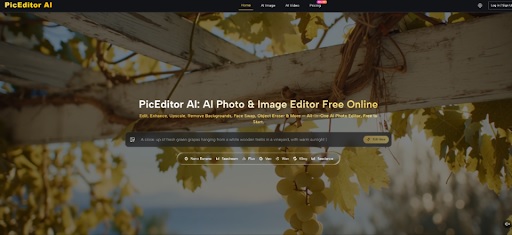
Every concept screenshot in our “redesign this app” series needs the same presenter face across five or six different stock scenes, because nothing looks less finished than a gallery where the “reviewer” in slide one and slide four are clearly different people. An AI Photo Editor with a face swap tool solves that consistency problem in theory, and it mostly does — right up until the two upload slots get mixed up.
That mix-up is not rare. It happened to this desk on a five-screenshot batch that was already sitting in device frame templates, and the fix burned most of an afternoon that was supposed to go toward the next concept piece. PicEditor AI ran exactly as instructed; the instructions were just backward.
Two Upload Slots Decide Which Face Wins
Face Swap on PicEditor AI is built around two upload boxes, not one, and the boxes are not interchangeable. Whichever photo lands in the first slot supplies almost everything in the final image except the face. Whichever photo lands in the second slot supplies only the face. Mixing up which photo goes where does not produce a blend or a warning; it produces a confident, fully rendered image built from the wrong assumption. In my testing, that confidence is exactly what makes the mistake dangerous — a broken render at least announces itself, while a reversed swap looks finished at a glance.
Image One Holds The Scene You Keep
Image 1 is the target: the stock photo of someone holding a phone in a coffee shop, standing at a standing desk, or gesturing at a laptop screen. Everything about that photo survives the swap except the face — the pose, the hands, the background, the lighting, even the wrinkles in the shirt. For a screenshot batch, this is the photo that actually needs to vary from slide to slide, since a gallery of five identical poses looks just as unfinished as five different faces.
Image Two Holds Only The Face To Apply
Image 2 is the face source, and ideally it is a plain, front-facing headshot with even lighting and nothing else competing for attention in the frame. This is the one photo that should stay constant across the whole batch, since it is the actual “presenter” identity the series is trying to keep consistent from slide to slide. Everything else in that second photo — background, clothing, framing — gets discarded once the swap runs.
The Slot Order Failure Ruins A Screenshot Batch
The failure on this desk happened because the headshot went into Image 1 and the coffee-shop stock photo went into Image 2, which is the exact reverse of the intended setup. Nothing about the interface stopped the run. Generate Image produced a result in a few seconds, same as it always does, and the mistake did not announce itself until the export was already sitting inside a screenshot mockup template.
Reversing The Slots Swaps The Wrong Face
With the slots reversed, the output kept the headshot’s plain background and lighting as the base scene, then pasted the stock model’s face onto it — the exact opposite of what the batch needed. On the worst of the five renders, the presenter’s jawline had melted into the stock model’s collar at the edge of the swap, a seam that would have been an easy fix if the identities had been right in the first place. Every one of the five renders came back with the wrong face doing the “presenting,” and the one consistent identity the whole series depended on was nowhere in any of them.
Frame Bleed Hides The Mistake Until Export
Screenshot mockups get dropped into a device frame template that crops tightly around the edges, and that crop hid the problem for longer than it should have. At thumbnail size inside the frame, a wrong face reads as “a person,” not as “the wrong person,” especially once the image gets scaled down and the frame bleed trims the outer edge where the giveaway details usually sit. The moment I dropped the export into the actual device frame at full size, it was obvious the face was wrong — but by then the batch had already been queued for five separate renders.
Lock Size And Resolution Before The Final Step
Once the slots are right, the remaining setup is short, and it stays the same every time the batch runs. Image Size gets locked to match the screenshot template’s aspect ratio before anything runs, since resizing after the fact is what introduces frame bleed in the first place. Resolution gets set to 2K, which held up fine once it was dropped into the device frame at the size the gallery actually publishes. Number of Images gets set to two rather than one, mainly because comparing a pair side by side catches an AI Photo Edit that technically ran correctly but landed a slightly off expression. PicEditor AI shows Required Credits at roughly 20 before Generate Image runs, and the finished pair lands in My Images for the side-by-side check.
None of those three settings fix a slot-order mistake, and that is worth saying plainly. Image Size, Resolution, and Number of Images all control how the render looks once the identities are already correct. They run after the slot decision, never before it, which is exactly why checking the upload boxes has to happen first, not as an afterthought once a render already looks decent on screen.
Check The Result Against The Device Frame
The table below is the actual before-and-after from this batch: what went into each slot, and what came out once the render was dropped into the device frame template at full size.
| Image 1 (Target) | Image 2 (Face) | Result In The Device Frame |
| Coffee-shop stock photo | Presenter headshot | Correct — presenter’s face, stock scene kept |
| Presenter headshot | Coffee-shop stock photo | Wrong — stock model’s face on a plain background |
| Coffee-shop stock photo (wrong aspect ratio) | Presenter headshot | Correct face, visible frame bleed at the crop edge |
Two of those three rows have nothing to do with the face at all. Slot order decides whether the right identity shows up; Image Size decides whether the frame crops something important off the edge once the mockup is assembled.
Relabel Files Before They Reach The Upload Box
The fix that stuck was boring on purpose: rename the two source files before opening the tool, so the target scene and the face source are never ambiguous at the exact moment a mouse click decides which box each one lands in. Something like scene-coffeeshop.jpg and face-presenter.jpg takes ten seconds and removes the guesswork entirely, which matters more than it sounds like it should when five files are queued up for the same batch and the two upload boxes look nearly identical at a glance. It solved a slot problem, not a creativity problem, and it has not recurred since.

Ship The Mockup Only After Slot Order Checks
PicEditor AI’s face swap is a genuinely fast way to keep one presenter’s face consistent across a whole batch of screenshot concepts, and once the slot order is right, the rest of the workflow is close to mechanical.
It is not a tool that catches its own setup mistakes. Nothing in the interface flags a reversed upload, and nothing about a confident, well-lit render tells you the identities got swapped in the wrong direction.
Before any export goes into a device frame template, drop it in at full size and check the face against the source headshot directly — not at thumbnail size, where a frame bleed crop can hide exactly the detail that would have caught the mistake first.