You finish editing a video and feel good about it. The visuals are clean. The timing works. Then you notice two things. The file is MOV, and the platform wants MP4. On top of that, the video still needs a voiceover.
This is where many creators slow down.
Most blogs talk about tools and formats, but they skip the real friction points. Audio that sounds fine in editing but feels off online. Videos that upload slowly. AI voices that feel stiff because the script was written like a manual.
An AI voice generator is a text-to-speech tool used to create voiceovers for videos without recording. This guide fixes those gaps.
This explains well here: how to utilize an AI voice generator, manipulate MOV files, and change them into MP4 to make your video look good, sound natural, and work everywhere.
How an AI Voice Generator Works
An AI voice generator is text-to-speech software. You type a script, pick a voice, and the tool transforms your text into spoken audio. That’s all.
What makes modern tools useful is control. You can update one sentence, adjust pacing, or regenerate a line without recording again. For creators who publish often, this saves serious time.
People use AI voice or a voiceover generator because:
- Recording yourself is inconvenient
- Background noise ruins takes
- Updates are frequent
- Consistency matters across videos.
AI narration can sound transparent, consistent, and natural when it is executed well. A tool will not work unless it has appropriate words fed into it.
MOV vs MP4
There is a popular belief that MOV is used to edit and MP4 is to share. Actually its true but an incomplete fact.
MOV files are great during editing because they preserve quality. But online, they can cause issues. Some platforms reprocess MOV files heavily. That can lead to:
- Audio slightly out of sync
- Softer narration
- Slower loading times
MP4 avoids most of that.
MP4 files are lighter, more stable, and designed for streaming. They are compatible with phones, tablets, laptops, and embedded systems.
A simple way to understand it:
- MOV is your working file
- MP4 is your delivery file
Editing in MOV and publishing in MP4 gives you control without surprises.
Why AI Voice and MOV to MP4 Work Best Together
Commonly, voice and video conversion are treated as separate topics. In real projects, they’re connected.
AI narration fits naturally during editing. MOV supports that stage well. Once the voice and visuals are locked, MP4 ensures the final video performs properly on real platforms.
This combined workflow helps you:
- Fix narration timing quickly
- Avoid re-recording
- Prevent playback issues after upload.
It’s not about tools. It’s about avoiding rework.
A Workflow That Actually Matches Real Use
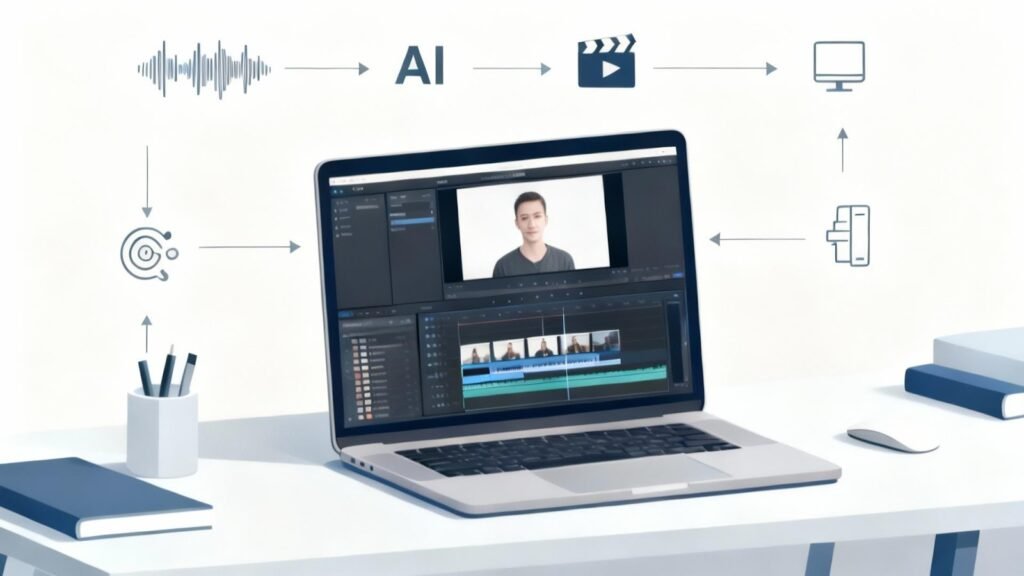
AI voice generator workflow showing MOV to MP4 video conversion in a professional video editing setup
Here’s a simple process that works for most creators.
Step 1: Write the Script as You Speak
Do not write like a blog post. Write like you explain something out loud.
Short sentences help. Clear pauses help more.
Read the script once before generating the voice. If it feels bad to you, it will be bad in AI narration.
Step 2: Generate the AI Voice
Pick a voice that is appropriate to your video. Calm voices work well for tutorials. Slightly energetic voices fit promos or intros.
Listen to the full audio. Fix pacing issues early. This is where AI narration shines because edits are quick.
Step 3: Sync the Voice With Your MOV File
Import the narration into your editor. Line it up with visuals. Leave space for pauses. Silence matters more than people think.
MOV files are ideal here because they hold quality while you fine-tune timing.
Step 4: Change MOV to MP4 to Publish
After editing, export the video (MP4) with default export settings.
Common video codecs such as H.264 maintain a sensible video frame rate, and do not go too low on compression. This protects audio sync and clarity.
Always test the MP4 before publishing.
How to Make AI Voices Sound Human
AI voices don’t sound robotic on their own. They sound robotic when the scripts are stiff.
To keep narration natural:
- Use contractions like “you’re” and “it’s.”
- Break long thoughts into smaller lines.
- Add commas where you’d naturally pause
- Avoid stacking too many facts in one sentence
Think conversation, not presentation.
A steady audio bitrate and clean volume matter more than effects. Simple audio almost always sounds better.
Why MP4 Improves Real-World Performance
MP4 isn’t just about compatibility. It affects how people experience your content.
MP4 videos:
- Load faster
- Buffer less
- Stream smoothly on mobile.
That matters because viewers leave quickly when a video struggles. Even strong content fails if playback feels slow or broken.
Better streaming leads to longer watch time, which helps on most platforms.
Common Audio and Conversion Mistakes
Usually, the main focus is on visuals and ignores sound.
Avoid these mistakes:
- Over-compressing narration
- Letting music overpower the voice
- Pushing volume too high
- Ignoring mobile playback tests
AI narration works best when it’s clear and balanced. You don’t need heavy processing.
Listen once with headphones. That single step catches most issues.
SEO Benefits Without Forcing Keywords
AI narration and MP4 video help SEO naturally.
Videos keep people on a page longer. Clear voice explanations reduce confusion. That improves engagement signals.
You can strengthen this by:
- Turning the script into captions
- Adding a short transcript
- Writing a clear title and description that matches the video
Avoid stuffing keywords. Match the language to what the video actually explains.
What information is usually ignored
The following practical details are mostly ignored, but it’s crucial to know:
- Writing matters more than voice selection
- MOV files can cause online sync issues
- MP4 protects timing and playback
- Pauses improve narration quality.
- Mobile testing is essential
Such facts will determine the difference between what sounds good and what works.
Who This Workflow Is Best For
This setup works well if you:
- Publish videos regularly
- Update content often
- Work alone or in a small team.
- Want clean narration without recording.
This workflow is used by solo creators, marketers, and educators publishing video content weekly. It is particularly helpful with the tutorials, product demos, training videos, and social media content.
Conclusion
Turning MOV into MP4 with the help of an AI voice generator is not a matter of trends or shortcuts. It’s about creating videos that sound natural, load fast, and work everywhere.
Write conversationally, edit with care. Convert before publishing.
When viewers focus on your message instead of your format or audio, you’ve done it right.
FAQs
Can an AI voice sound natural?
Yes, when the script is written conversationally, and pacing is respected.
Should I always convert MOV to MP4?
For online publishing, yes. It avoids compatibility and sync issues.
Does MP4 reduce video quality?
Not when proper export settings are used.
Is AI narration suitable for professional content?
Yes. It is already used by many businesses in order to be clear and consistent.
Do I need advanced software for this workflow?
No. Clear writing and basic tools are enough.
How long does it take to convert a MOV video to MP4?
Generally, a few minutes in most instances. Short videos can convert almost instantly, depending on file size and your system.