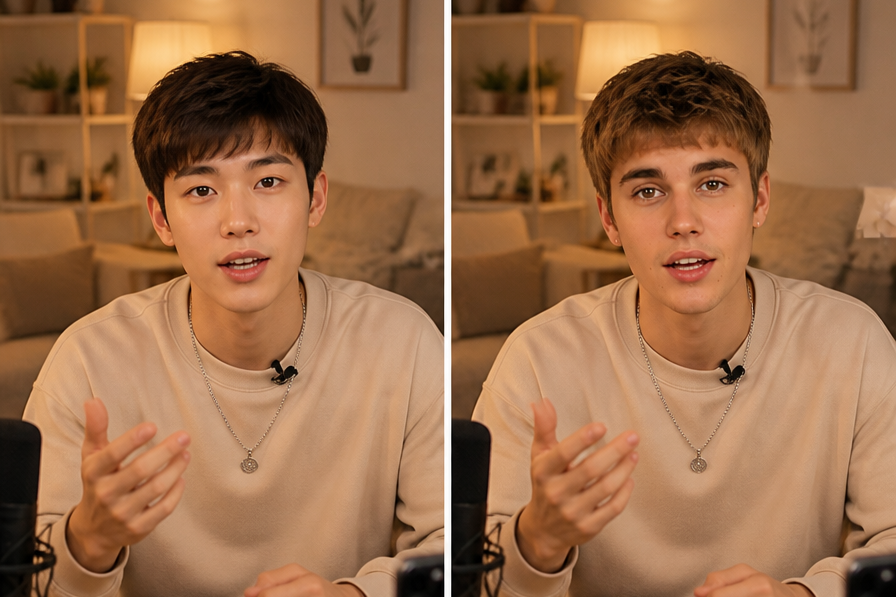
A convincing video face swap starts with the right source photo, not an expensive camera or complicated editing software. With a clear front-facing image and a short video, you can replace the face of the person on screen while keeping the original movement, timing, and background.
The results depend on the match between the photo and video. Lighting, head angle, facial expression, video quality, and movement all affect how natural the final clip looks. I’ve found that careful preparation makes a bigger difference than repeatedly changing settings after the swap is complete.
For a simple browser-based workflow, EasyFaceSwap lets you upload a source image and video without installing desktop software. Its Video Face Swap tool is designed for this exact process, so it’s a practical place to start if you want to test the method with one photo.
Step 1: Choose a Strong Source Photo
Your source photo is the face the tool will place into the video. Choose an image where the person looks directly at the camera, with both eyes visible and the full face inside the frame. A sharp portrait taken in even light usually works better than a stylish photo with heavy shadows, sunglasses, or a dramatic side angle.
Use a photo with a neutral or natural expression if possible. A wide smile can work for a smiling video, but it may look odd if the target person is speaking with a serious expression. The face should also be large enough for the software to identify key features such as the eyes, nose, mouth, cheeks, and jawline.
Avoid group photos, blurred selfies, profile shots, and pictures with hair covering most of the face. Filters can cause problems too, especially those that change skin tone, eye size, face shape, or mouth position. If you only have one photo, crop it carefully so the face has a little space around the chin, forehead, and sides.
The image doesn’t need to be huge. A clean, well-lit photo with moderate resolution is more useful than a large but compressed or blurry file. Before uploading, check that the file opens normally and that the face is easy to see at a glance.
Step 2: Prepare the Video and Upload Both Files
Pick a video with steady lighting and a clear view of the target face. Short clips are generally easier to process and tend to produce more consistent results, especially when you’re learning. A video with one person facing the camera is a better first test than a crowded scene with fast cuts, extreme head turns, or several people in the frame.
Trim away unnecessary opening and closing footage before uploading. This saves processing time and makes it easier to judge the finished result. If the subject turns completely away from the camera, becomes heavily covered by an object, or moves into deep shadow, the swapped face may distort during those moments.
Open the face swap tool and upload the photo as the source face. Then add the video that contains the face you want to replace. The exact labels may differ between tools, but the basic sequence is usually the same: identify the source face, identify the target video, and start the processing step.
Give the files clear names before uploading, such as `source-photo.jpg` and `target-video.mp4`. This small habit prevents mistakes when you’re working with several versions. Also check the tool’s file limits and supported formats first, since a video may need to be converted or shortened if it’s too large.
Only upload images and videos you have permission to use. A face swap can be harmless when used for a private joke, a creative project, or a clearly labeled parody, but using someone’s face without consent can create privacy, reputational, or legal problems. Don’t use the process to impersonate someone, mislead viewers, or create intimate material without explicit permission.
Step 3: Process the Swap and Review the Preview
Once both files are ready, start the face swap and wait for the preview or rendered video. Processing time depends on the clip length, resolution, and service capacity. Avoid judging the result from a single paused frame because a face can look slightly unusual during movement while appearing natural across the full clip.
Watch the entire video from beginning to end. Pay close attention when the subject turns their head, talks, laughs, blinks, raises their eyebrows, or passes through changing light. These moments reveal how well the tool has tracked the facial features and blended the replacement face with the original head movement.
Look for common visual issues such as a drifting face, a visible edge around the jaw, mismatched skin color, frozen expressions, or eyes that do not align with the head. You might also see the source face appear too large or too small compared with the target face. These problems usually come from a poor source photo, difficult motion, or a target video with weak lighting.
If the preview looks wrong, don’t immediately assume the tool has failed. Try a better source photo first, preferably one with a similar angle and expression to the target. If the video contains several difficult sections, trim it to a more stable portion and process that shorter clip. Making one controlled change at a time helps you understand what improved the result.
Step 4: Improve the Result and Avoid Common Mistakes
The best improvement usually comes from matching the photo to the video. For example, a source image taken indoors under warm light may look unnatural in a bright outdoor clip. A photo with a neutral expression may also blend poorly into a video where the subject spends most of the time smiling or speaking energetically.
Keep the target clip reasonably short while experimenting. Long videos increase processing time and give more opportunities for tracking errors. They also make it harder to spot the exact moment where the quality drops. Once you have a reliable result, you can work with a longer clip if the tool supports it.
Don’t add extra filters before you understand the basic output. Skin-smoothing effects, color changes, sharpening, and overlays can hide the real cause of a problem. Start with the original photo and video, then make simple edits afterward if the final clip needs a small brightness or color adjustment.
Audio usually stays with the original video, but review it before sharing. A face may look convincing while the speech, context, or caption makes the edit misleading. If the clip is altered for entertainment, label it clearly as edited or synthetic so viewers are not encouraged to believe it is real footage.
Respect people who appear in both files. Consent matters even when the result seems obviously humorous, and it matters more when the video could be shared publicly. Avoid swapping faces into political statements, news-like scenes, personal accusations, or sexual content. Clear permission and honest labeling protect the people involved and make the creative use more responsible.
Step 5: Export, Check, and Share Carefully
When the result looks good, export the video in a format that works for your intended platform. Keep the original file as well as the finished version, since you may want to make a different crop, add a label, or return to the project later. If the download offers several quality settings, choose a balanced resolution that keeps facial details clear without creating an unnecessarily large file.
Watch the downloaded file rather than relying only on the online preview. Check the first and last few seconds, since some processing issues appear during transitions. Confirm that the audio is synchronized, the video opens correctly, and the face remains stable after download.
If you plan to post the clip, include a simple disclosure such as “Face swapped for a parody” or “Edited with AI.” That wording sets the right expectation without distracting from the video. Private use still deserves care, but public sharing carries a higher risk of confusion, so transparency becomes especially important.
A one-photo face swap works best when you treat it as a careful matching exercise. Use a sharp, front-facing source image, choose a short and well-lit target video, review the full result, and adjust the files before changing tools or settings. With those steps, you can create a clean, entertaining edit while keeping the process respectful and clear to everyone who sees it.