Downloading an Instagram video can be useful when you want an offline copy of a Reel, save your own content for backup, or keep public media for personal reference. Browser-based downloaders simplify the process by working directly from an Instagram link without requiring extra software.
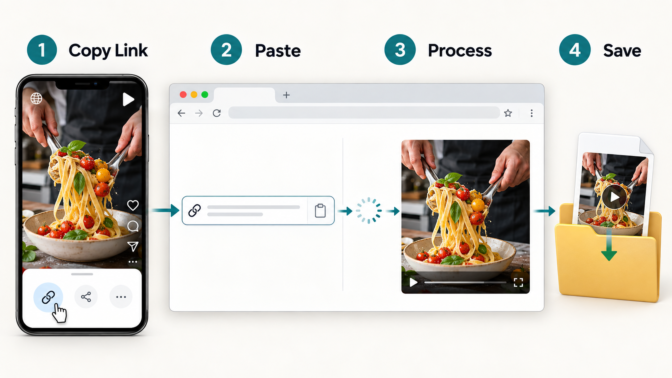
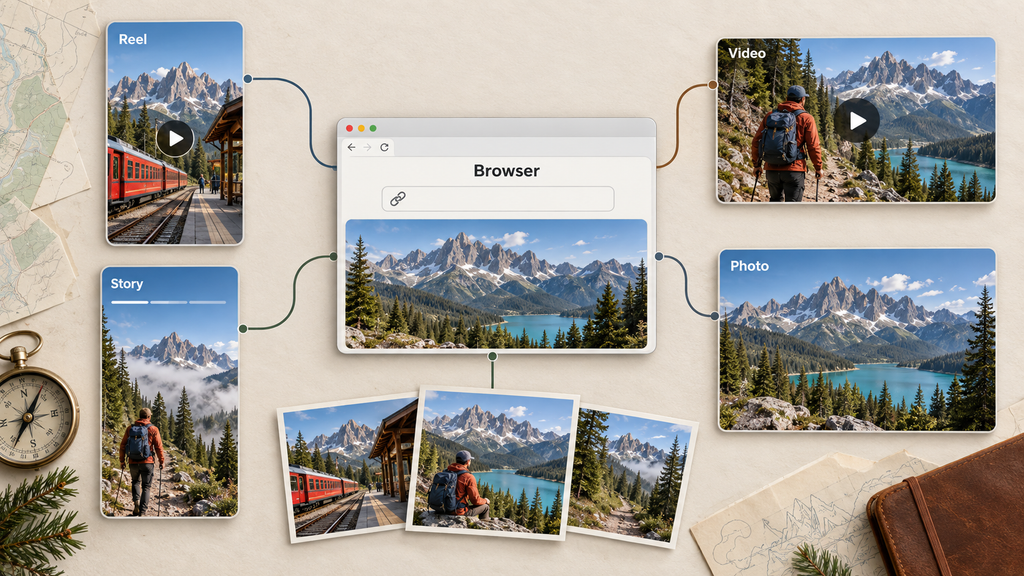
Grabfy is a browser-based Instagram downloader designed for supported public content, including feed videos, Reels, Stories, Highlights, photos, and carousel posts. The basic process is simple: copy the Instagram link, paste it into the downloader, and save the available media to your device.
Quick Start: How to Download an Instagram Video
You can use Grabfy from a modern browser on a phone, tablet, or computer. There is no need to install a separate desktop program or mobile app.
The basic process is straightforward:
- Open Instagram and find the public video, Reel, post, Story, or Highlight you want to save.
- Use Instagram’s sharing options to copy the link. On desktop, you can usually copy the URL from the browser’s address bar.
- Open Grabfy in your browser and paste the copied Instagram link into the input field.
- Process the link and use the available download option to save the media to your device.
The exact file you receive depends on the original Instagram content. Video content is generally provided in a video format such as MP4, while images can be saved as image files. Because third-party downloaders rely on media that Instagram makes publicly accessible, private-account content should not be expected to work.
What to Look for in an Instagram Video Downloader
Not every Instagram downloader offers the same experience. Beginners should look for a straightforward workflow that does not require unnecessary access to an Instagram account.
No Instagram login required
For a public-link downloader, there should generally be no reason to enter your Instagram password. A tool designed to process publicly accessible URLs can work from the link itself. Avoid giving Instagram credentials to unfamiliar third-party websites.
Support for the content you need
Instagram contains several types of media, including Reels, feed videos, Stories, Highlights, photos, and multi-item carousel posts. Some downloaders focus on only one format, while others support several types of public content.
If your main goal is saving videos, the Grabfy Video Downloader provides a direct browser-based workflow for supported public Instagram videos. Copy the URL, paste it into the tool, process the link, and use the available option to save the video.
This focused approach is useful for beginners because it keeps the process centered on the Instagram link rather than requiring account connections or additional software.
Browser and device compatibility
A web-based downloader is particularly convenient when it works across common desktop and mobile browsers. This avoids installing a separate application simply to save an occasional video.
Usability matters as well. A clear input field, recognizable download controls, and minimal unnecessary steps can make the process easier, particularly on a phone.
Why Use Grabfy for Public Instagram Content?
Grabfy keeps the workflow centered on the Instagram URL rather than requiring an account connection. This can be useful for people who occasionally need an offline copy of publicly accessible media without installing additional software.
The service covers several common Instagram content types, so you do not have to treat every download as an entirely different process. Depending on the content, you can work with public feed videos, Reels, Stories, Highlights, photos, and carousel posts.
That broader coverage can be helpful for creators and social media teams maintaining reference libraries. A marketer, for example, might save their own published campaign assets for an archive, while an individual user might keep a public tutorial or travel Reel for offline reference.
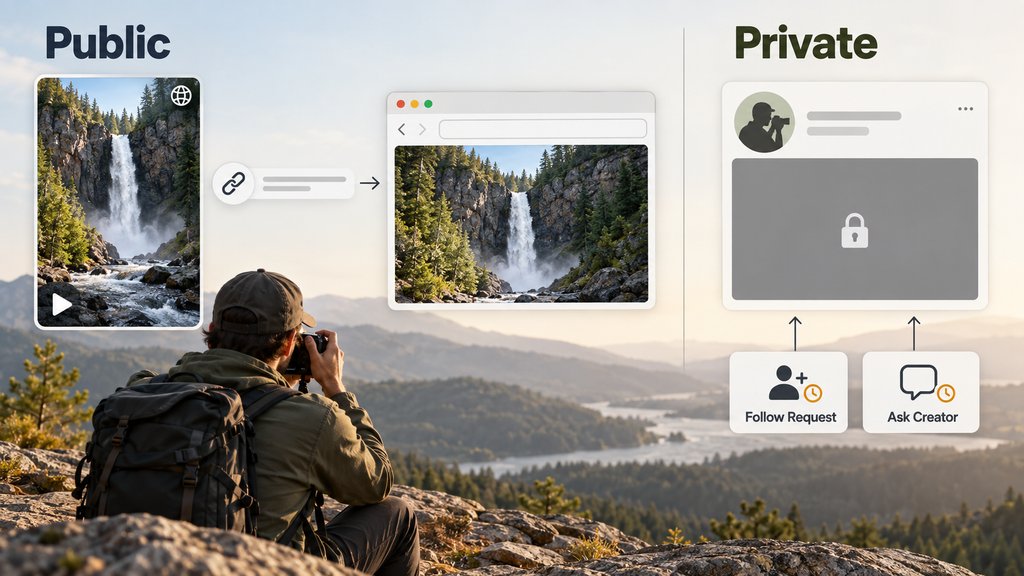
The important limitation is that browser downloaders are not a way around Instagram’s privacy controls. If a profile or piece of content is private or otherwise inaccessible through a public URL, respect that restriction.
Step-by-Step: How to Download an Instagram Video with Grabfy
Although Instagram’s interface can differ slightly between devices and content types, downloading supported public media generally follows the same URL-based process.
Step 1: Copy the Instagram link
In the Instagram app, open the Reel, video, Story, Highlight, or post you want to save. Use the share menu or other available post options and select Copy link when that option is available.
On a desktop browser, open the individual Instagram post or Reel and copy its URL from the address bar. Make sure you copy the link to the specific piece of content rather than the creator’s general profile page.
Step 2: Open Grabfy and paste the link
Go to Grabfy.com in your browser and paste the copied Instagram URL into the appropriate input field. Grabfy will attempt to identify the publicly available media associated with that link.
Using Grabfy from the main website can be convenient when you work with different supported Instagram formats rather than videos alone. This gives beginners a consistent starting point when moving between public videos, Reels, Stories, photos, and other supported media.
If a link does not process correctly, first confirm that you copied the complete URL and that the original content remains publicly accessible.
Step 3: Process the Instagram URL
After pasting the URL, follow the available option to process the link. The tool needs to identify the supported public media associated with the Instagram page before presenting the available download option.
Processing time can vary depending on the content, connection speed, browser behavior, and current availability of the original Instagram media.
Step 4: Save the available file
Once the content has been processed successfully, choose the appropriate download option offered by the page.
On Windows or macOS, the file will normally appear in your browser’s configured download location unless you have chosen to select a location for each download. On Android, downloaded files are typically available through the browser’s downloads section or the device’s file manager.
On iPhone and iPad, the location can depend on your browser and download settings. Check the browser’s downloads list and the Files app if the media does not immediately appear where you expect it.
Troubleshooting Instagram Video Downloads
A failed download does not necessarily mean there is a problem with your device. The URL, availability of the original post, privacy settings, or temporary changes on Instagram can affect whether a third-party tool can retrieve media.
The Instagram link returns an error
Open the original link in your browser and confirm that the post is still publicly accessible. If the creator deleted the content, changed the account to private, or restricted access, a public-link downloader may no longer be able to retrieve it.
If the content remains public, copy the link again directly from Instagram and retry it. This can rule out an incomplete or outdated URL.
The downloader cannot find the video
Confirm that you copied the URL of the individual Reel or post rather than the creator’s profile page. Temporary platform changes can also interfere with third-party tools, so trying again later with a newly copied link may resolve the issue.
The download is slow
Connection speed, file size, browser behavior, server load, and Instagram’s availability can influence processing time. Refreshing the page or copying a fresh Instagram URL may help if a request appears stuck.
Avoid repeatedly submitting the same URL in rapid succession. If the problem continues, verify that the original content remains publicly accessible.
Frequently Asked Questions
Can I download videos from private Instagram accounts?
A public Instagram downloader should not be treated as a way to bypass private-account restrictions. If content is available only to approved followers, respect the account owner’s privacy and use legitimate options provided by Instagram or ask the creator for a copy.
Can I save Instagram videos without an account?
Publicly accessible content may be downloadable through a browser-based tool without connecting or logging into an Instagram account, provided the URL and media are accessible to the service.
Does downloading give me permission to reuse a video?
No. Downloading a file does not transfer ownership or usage rights. Saving your own content or material you have permission to use is different from republishing another creator’s work.
If you intend to reproduce, redistribute, modify, or commercially use someone else’s Instagram content, obtain the appropriate permission first.
Download Instagram Videos Responsibly
Downloading an Instagram video with Grabfy follows a beginner-friendly process: find the supported public media, copy its Instagram URL, paste the link into the appropriate browser-based tool, process it, and save the available file.
Grabfy is particularly useful when you want a browser-based workflow that can accommodate different types of supported public Instagram content without requiring separate software. Whatever media you download, keep private content private, respect creators’ copyrights, and obtain permission before republishing material that does not belong to you.