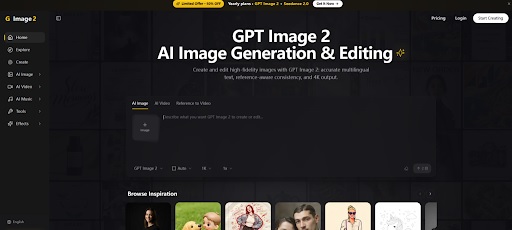
The gap between imagining a visual and actually putting it to work has always been the quiet friction in digital content. You generate something, you download it, you open another tab, you upload it somewhere else, you copy a link, you paste it—and somewhere in that chain, the original intent starts to blur. For anyone who has spent more time managing image files than making them, the frustration is familiar. That is precisely why Image 2 caught my attention. It is not another AI image generator that stops at the export button. It is a workflow that treats the image as something that needs to move, not just exist.
Most image tools look impressive on a landing page and fall apart under actual use. The promises are big; the execution is often brittle. I wanted to see whether this platform could hold up across the kinds of tasks that real creators handle daily—not just generating pretty pictures, but editing them, adapting them, and getting them out into the world without friction. Over the course of several sessions, I ran it through a testing framework built around three questions: Can it handle the input I already have? Can it give me the output I actually need? And can it do both without making me switch tools every five minutes?
A Testing Framework That Separates Real Utility from Hype
The answer, from a practical user perspective, is more nuanced than a simple yes or no. The platform appears to be built around a philosophy of consolidation. It combines AI image generation, image editing, and AI video creation within a single workflow. You can start from a text prompt, a single uploaded image, or multiple reference images, then refine and export the result without leaving the interface. That continuity is rare. Most tools force you to export, re-import, and pray that the quality survives the round trip. Here, the loop feels tighter.
What distinguishes a serious image tool from a toy is not the flashiest feature—it is the quiet competence of the fundamentals. During my tests, I paid close attention to three areas that tend to expose weaknesses in AI-driven image workflows: text rendering, reference consistency, and output resolution.
Text Rendering That Actually Respects the Words You Write
Text rendering is where many models collapse. Ask them to generate a poster with a clear headline, and you often get garbled characters or broken letterforms. This platform supports accurate multilingual text rendering, which means the words you put in the prompt actually appear readable in the final image. That matters for anyone creating ad creatives, social media visuals, or branded content. A poster with illegible text is useless, regardless of how beautiful the background is.
In my testing, I pushed this with a mix of English headlines, Chinese product names, and even a few mixed-language labels. The results were consistently readable. It is not flawless—very dense text or highly stylized fonts can still introduce artifacts—but for standard commercial use cases like packaging mockups, social media captions, and presentation titles, the reliability is noticeably ahead of many competitors.
Reference-Aware Consistency That Keeps Your Subject Intact
Reference-aware consistency is another area that separates controlled workflows from chaotic generation. If you upload a product photo and ask the tool to place it in a new setting, the product itself should remain recognizable. The shape, the color, the key details—they should persist. In my testing, the platform handled this reasonably well. I uploaded a basic shot of a coffee bag and asked for ten different background variations. The bag stayed recognizably the same across all outputs. The lighting and reflections shifted appropriately, but the core subject did not morph into something unrecognizable.
It is not perfect; complex objects with fine details may require multiple attempts. A watch with intricate dial markings, for example, lost some legibility in one out of four generations. But the underlying logic is sound, and the results tend to be usable on the first try more often than not. For e-commerce sellers who need to generate multiple lifestyle shots from a single product photo, this consistency is a practical time-saver.
Output Quality That Holds Up at 4K
Output quality lands at 4K resolution, which is sufficient for most commercial applications. Whether you are preparing images for a website, a presentation, or a print mockup, the clarity holds up. I did not observe significant compression artifacts or loss of detail in the exports. The platform also offers 4K upscaling for images that need a resolution boost, which is a useful fallback when working with lower-quality source material.
How the Platform Actually Works: A Transparent Walkthrough
Getting a usable image from this platform follows a straightforward sequence. The process is refreshingly free of unnecessary detours.
Step 1: Choose Your Starting Point
Text, Image, or Multiple References
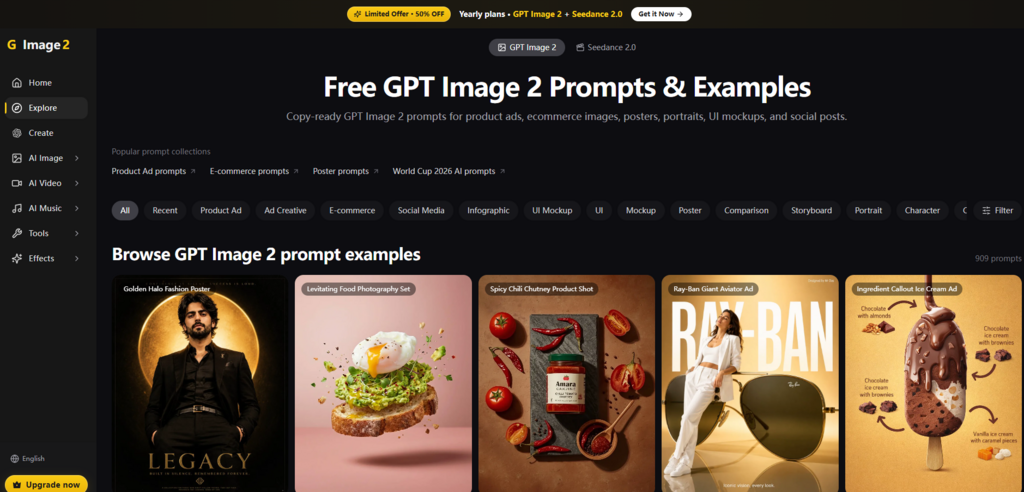
The entry point is flexible. You can type a detailed prompt to generate something from scratch, drag an existing image into the input area, or upload multiple reference images for more complex compositions. The platform does not force you into a single mode of operation. If you have a rough sketch, you can upload it and ask for refinement. If you have a clear vision in words, you can type it out. If you have several examples of the style you want, you can provide them all.
That flexibility is not just a convenience—it is a signal that the tool is designed for real-world creative work, where inputs are rarely clean and predictable. In one session, I started with a text prompt, then switched to an image upload midway through a project, and the interface adapted without any friction.
Step 2: Refine Through Natural Language
Editing Without Layers or Masks
One of the more practical features is the ability to edit images using natural-language instructions. You do not need to understand layer masks, adjustment curves, or blending modes. You simply describe what you want to change. For example, you can request a background removal, a color shift, or a restoration of an old photograph. The tool interprets the instruction and applies the edit directly.
This lowers the barrier significantly for users who are not trained in graphic design but still need professional-looking results. It is not a replacement for Photoshop in the hands of an expert, but it is a capable alternative for quick turnarounds. I tested this with a cluttered product photo and asked for a clean white background. The result was a usable cutout in about ten seconds, with no manual masking required.
Step 3: Generate and Export
From Image to Video in the Same Session
The workflow does not end at a static image. The platform also supports image-to-video and reference-to-video generation. If you need a short cinematic clip based on a still image or a set of references, you can generate it without exporting and re-importing into a separate video tool. This is particularly useful for social media content, where short video loops often perform better than static visuals.
The video output is not meant to replace dedicated video production software, but it serves as a rapid prototyping tool for concepts that need motion. In my testing, a three-second product rotation clip generated from a single still image looked polished enough for a social ad preview.
Where This Workflow Fits Different Creative Needs
Not every tool is for every user. Based on my experience, this platform aligns best with specific scenarios.
For product photographers and e-commerce sellers, the ability to upload a raw product shot and transform it into a polished main image is valuable. The one-click background removal and 4K upscaling features reduce the need for external editing software. You can go from a phone photo to a listing-ready image in a single session.
For marketers and content creators, the platform offers a way to generate ad creatives, posters, and social media visuals without juggling multiple subscriptions. The multilingual text rendering ensures that campaigns in different languages remain legible, which is a practical advantage for international brands.
For designers and founders who need to iterate quickly, the natural-language editing and multi-image composition features provide a low-friction way to test variations. You can describe a change, see the result, and describe another change—all without switching contexts or losing momentum.
A Straightforward Comparison
| Aspect | Image 2 | Typical Separate Tools |
| Entry Point | Text, single image, or multiple references | Often limited to one input type |
| Editing Method | Natural-language instructions | Layer-based or menu-driven |
| Output Formats | Images and video in one workflow | Separate tools for each format |
| Learning Curve | Moderate; no design background required | Steeper for advanced editing |
| Workflow Continuity | Start to finish without switching | Multiple exports and imports |
This table is not meant to declare one approach universally superior. It simply reflects a difference in philosophy. If you prefer deep control over every pixel and have the time to master complex software, dedicated tools remain the right choice. If you value speed, iteration, and a single workspace, the integrated approach makes more sense.
What the Platform Does Not Promise
Honest assessment requires acknowledging the boundaries. The platform is not a magic wand. The quality of the output depends heavily on the quality of the input. A vague prompt produces a vague result. A poorly lit reference image will not magically turn into a studio-grade photograph. Complex scenes with multiple subjects or fine-grained details may require several attempts to get right. The result may vary from one generation to the next, which is a characteristic of most AI-driven creative tools rather than a unique shortcoming.
There are also practical constraints worth noting. While the platform offers free credits on signup, heavier usage may require an upgrade. The video generation feature is best understood as a rapid prototyping tool rather than a full-fledged production solution. And for users who need batch processing or API access, the current web-based workflow may feel limiting.
None of these limitations are deal-breakers for the core use cases. They are simply boundaries that help set realistic expectations. A tool that claims to do everything perfectly is usually a tool that does nothing well. This one is honest about what it can and cannot do, and that honesty is part of what makes it worth using.
When the Workflow Stops Being the Problem
The real value of a consolidated creative tool is not any single feature. It is the cumulative effect of removing small frictions. You do not need to remember where you saved that exported file. You do not need to reopen a separate editor for a quick background removal. You do not need to switch tabs to generate a short video from the image you just made.
That might sound like a minor convenience. But for anyone who creates visual content regularly, those small interruptions add up. They break flow. They drain momentum. And they turn a creative process into a logistics exercise. The platform I tested does not eliminate all of those interruptions, but it reduces enough of them to make a noticeable difference in how quickly you can move from an idea to a finished asset.
The question is not whether this tool is the best image generator on the market. That depends on what you need. The question is whether it fits the way you actually work. For creators who value speed, who work across multiple formats and who want to keep their entire workflow in one place, GPT Image 2 offers a genuinely useful alternative to the fragmented tool stack that has become the default. It is not a revolution. It is just a workflow that finally stops getting in your way.